| | Piraino Enterprises Preventing Lockups When Upgrading to Windows XP Service Pack 2
With more than 130 million copies of Windows XP Service Pack 2 (SP2) downloaded, an impressive number of Windows users are already enjoying the advanced security features and other enhancements that SP2 has to offer. The vast majority of users upgrade to SP2 without a hitch, but there are some unusual cases where users have software or hardware configurations that cause problems with starting their computers after they install SP2. In the first part of this article, we’ll take a look at how you can easily avoid those infrequent problems if you haven’t yet upgraded to SP2. The second section will point you to resources that can help in the event that you’ve encountered startup problems after installing the SP2 upgrade.
Before You Upgrade
An important way to insure a carefree upgrade is to visit the Windows Update website and install any available critical updates before attempting to install SP2. Most individuals will visit Windows Update to install SP2 anyway, but those who install from a CD or using the SP2 Network Installation Package might be tempted to skip this step. Don’t! Windows Update can examine your system for characteristics that can cause SP2 upgrade difficulties, and it will automatically download the appropriate software updates to address any problems that might occur.
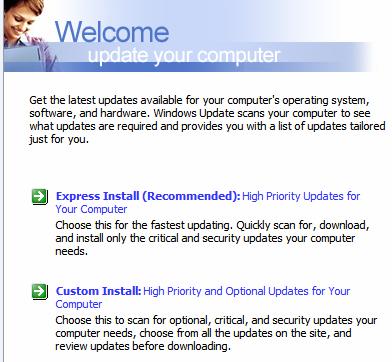
Figure 1. Be sure to visit Windows Update and install all High Priority Updates before installing Windows XP Service Pack 2.
The issues that are most likely to cause problems with computers freezing during startup after the SP2 update are: - A conflict with the T.V. Media adware program.
- A conflict between certain computer BIOS revisions and the Prescott C-0 version of the Intel Celeron and Pentium 4 processors.
Both of these conflicts are now addressed by Windows Update, so a visit to the site before installing XP SP2 will prevent them from affecting your computer.
It’s also a good idea to follow the instruction in the article What to Know Before You Download and Install Windows XP Service Pack 2, and to run through the “pretests” procedure in Jodi Ballew’s Visiting a Service Center to Get Service Pack 2 Installed article to insure that your drivers are up to date, and that you don’t have any advertising or spyware programs installed that could cause you additional problems.
Once you’ve completed these steps, you can install SP2 with confidence, either by turning on automatic updates, downloading SP2 using Windows Update, or using a Windows XP SP2 update CD.
Troubleshooting
If you started reading this article because you’ve already upgraded to SP2 and you’re now experiencing lockups, here are pointers to troubleshooting procedures that should get your computer up and running.
If your computer stops after a restart during SP2 installation and displays a blue screen with the following error message, you probably have the third-party T.V. Media advertising program installed, which can cause the installation process to fail:
A problem has been detected and Windows has been shut down to prevent damage to your computer...
Technical information:
STOP: c0000135 {Unable To Locate Component}
This application has failed to start because winsrv was not found. Re-installing the application may fix this problem.
As we mentioned before, visiting Windows Update and installing High Priority Updates before upgrading to SP2 will address this conflict and allow SP2 to install correctly. However, if you’ve already installed SP2 and this issue is preventing you from completing the installation, you’ll need to use the Recovery Console to remove the partially installed SP2 update from your computer, and then either remove the T.V. Media application or install the Adware T.V. Media Remove Tool package. The steps for doing this are outlined in Knowledge Base article 885523.
If your computer freezes with no error message when starting up after installing SP2, you may be experiencing a conflict between certain computer BIOS revisions and the Prescott C-0 version of the Intel Celeron and Pentium 4 processors. (The BIOS is the built-in software that handles starting your computer, before Windows loads. Some older BIOS versions don’t properly support that particular processor version.) Advanced users should try to find an updated BIOS files on their computer manufacturers’ web site. If one is unavailable, or if you’re not familiar with how to update a BIOS, you’ll find procedures in Knowledge Base article 885626 that will allow you to boot your system and apply the update that addresses the Prescott issue.
If you encounter other difficulties during SP2 installation and are unable to successfully boot your computer, it’s possible to use the Automatic Recovery feature to restore your computer to its pre-SP2 installation configuration. You’ll need to locate your Windows XP installation CD and then refer to Knowledge Base article 875355 for full details on the commands you’ll use to uninstall SP2. After following the instructions in the article, your system should be back to the state that it was in before the upgrade. You’ll also find instructions on how to gather information that you can send to a Microsoft Product Support Service professional who can work with you to diagnose the issue so that you can successfully install SP2.
Preventing Lockups When Upgrading to Windows XP Service Pack 2
Published: November 23, 2004 By Denny Atkin, Windows User Assistance Writer.
Denny Atkin is a writer for the Microsoft Windows User Assistance group. He's authored a number of computer tutorial and tips books. Denny has written about technology topics since 1987 for magazines ranging from OMNI to Computer Gaming World.
Need help installing Windows XP Service Pack 2?
Give us a call (312) 719-0777
One Company. One Call. Piraino Enterprises. For over 5 years our customers have had the convenience and economical solution of dealing with only One Company, for all of their information technology products. Whether it's a computer upgrade or computer repair we do it all. Our service department has the ability to identify most product's manufacture. When high-tech help is needed One Company. One Call. The highly trained employees of Piraino Enterprises can handle all your computer, network, and Web Development needs.
|